Image KB Increaser
Upload an image, set a target size in KB, and download a padded version — visually identical, larger file size.
KB Increaser – Increase Image Size in KB Online
Sometimes an image looks perfectly fine, but an online application refuses to accept it because its file size is too small. For example, a form may require a photograph between 50 KB and 100 KB, while your image is only 25 KB. In this situation, you don’t need to take another photograph or use complicated photo-editing software.
A KB Increaser is an online web tool designed to increase the file size of an image to a required KB value. You can upload your image, enter the target size, process it, and download the resulting file.
This type of tool is particularly useful for students, job applicants, government-form applicants, photographers, and anyone who regularly uploads documents or photographs online.
Modern browser-based image size increasers can process images directly in the browser, allowing users to adjust file size without necessarily uploading their photos to a server.
What Is a KB Increaser?
A KB Increaser is a web-based image utility that increases an image’s file size in kilobytes (KB).
It is important to understand that file size and image dimensions are different things.
For example:
- 20 KB → File storage size
- 100 KB → File storage size
- 500 KB → File storage size
- 1920 × 1080 pixels → Image dimensions
If your photo is 30 KB but an application requires a minimum of 100 KB, you need to increase the file size, not necessarily the width or height of the image.
A KB Increaser is designed specifically for this situation.
Why Do You Need a KB Increaser?
Many websites and online application forms specify minimum and maximum file sizes. If your image does not fall within the required range, the website may display an error such as:
“File size is too small.”
For example, a website might require:
- Photo: 20 KB – 50 KB
- Signature: 10 KB – 20 KB
- Photograph: 50 KB – 100 KB
- Document image: 100 KB – 200 KB
If your file is below the minimum requirement, a KB Increaser can help you create a larger file that meets the specified requirement.
How Does the KB Increaser Work?
Using a KB Increaser is usually very simple.
Step 1: Upload Your Image
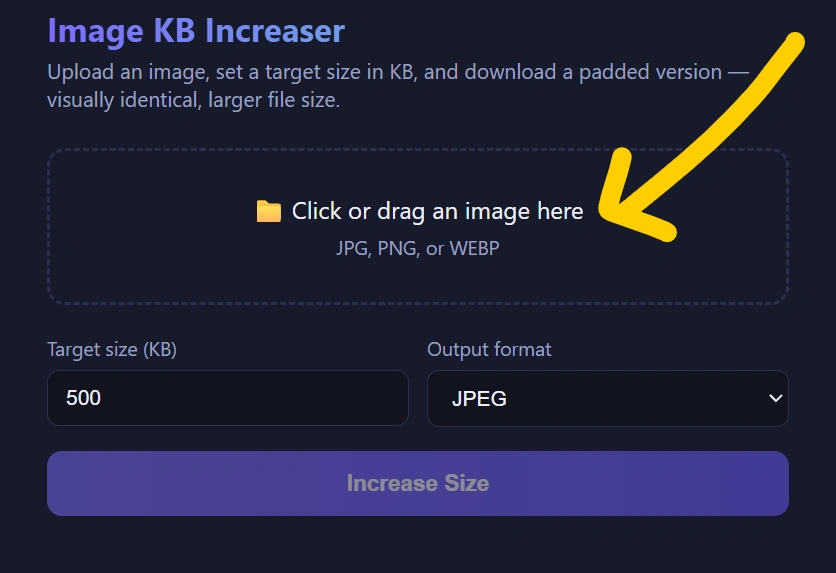
Choose the JPG, JPEG, PNG, or WebP image from your phone or computer.
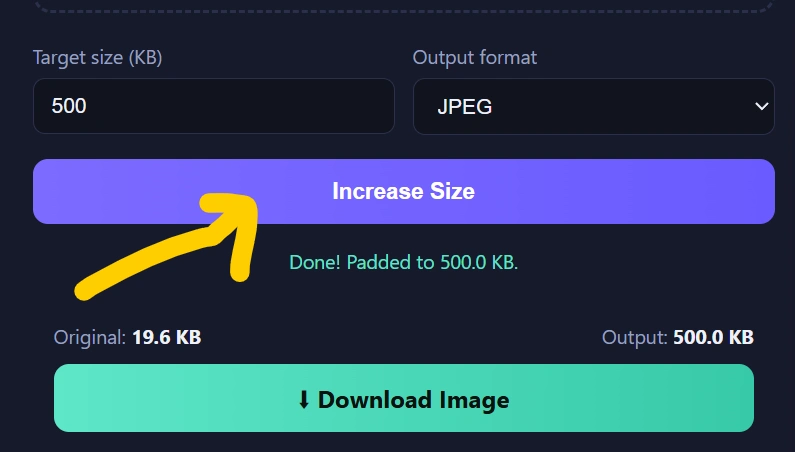
Step 2: Check the Current File Size
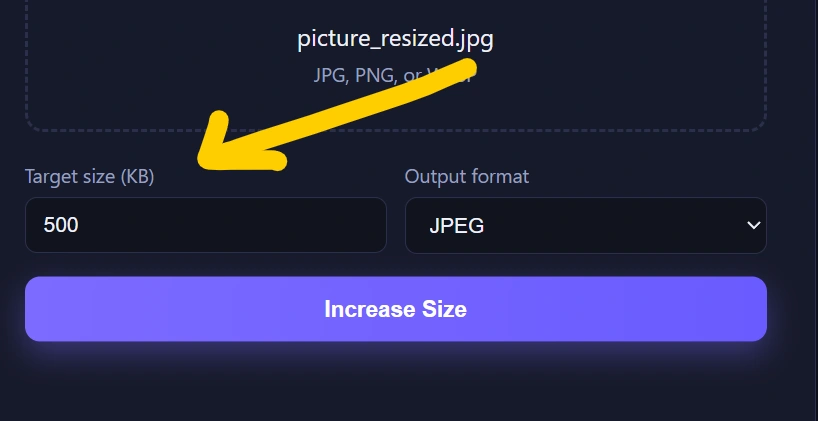
The tool can show the original file size so you know how much you need to increase it.
For example:
Original Size: 32 KB
Step 3: Enter the Target KB
Enter the size required by your website or application.
For example:
Target Size: 100 KB
Step 4: Increase the File Size
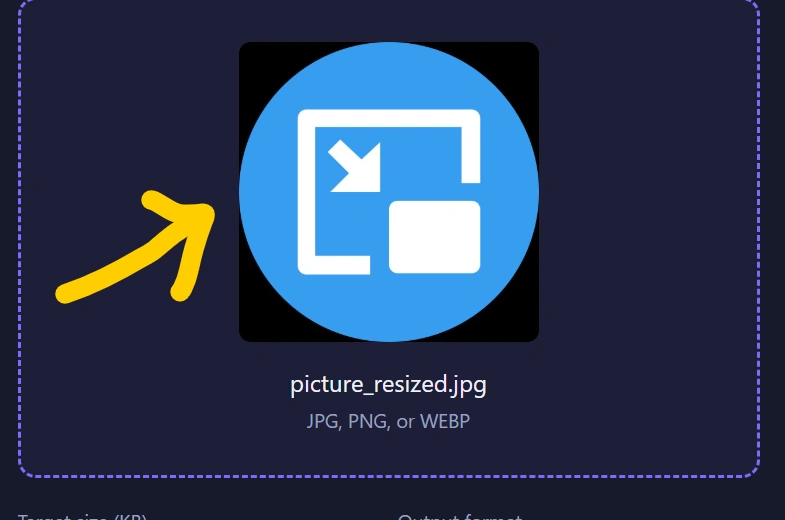
Click the Increase Size, KB Increaser, or similar button.
The tool processes the image and creates a new file closer to your target size.
Step 5: Download the Image
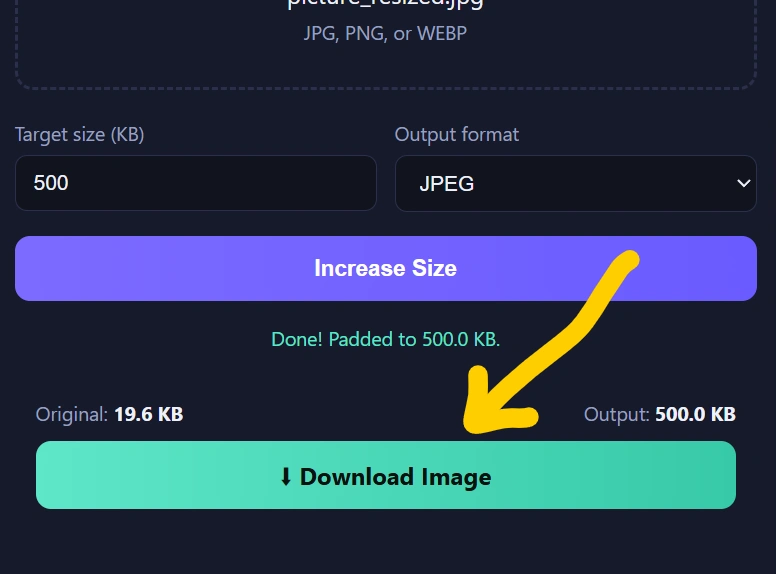
Download the generated image and upload it to the website, application, or online form.
Increase Image to 20KB, 50KB, 100KB, 200KB or More
One of the biggest advantages of a good KB Increaser is target-size control.
Depending on the tool, you may be able to enter values such as:
- Increase image to 20KB
- Increase image to 30KB
- Increase image to 50KB
- Increase image to 100KB
- Increase image to 150KB
- Increase image to 200KB
- Increase image to 500KB
- Increase image to 1MB
- Enter a custom KB value
Some online tools provide preset values while others allow users to enter their own target size.
KB Increaser for Government Forms and Exam Applications
A KB Increaser can be particularly useful when completing online applications.
Government, recruitment, scholarship, university, and examination portals often provide specific image upload requirements. If the photograph is below the minimum file size, the upload may fail even though the image itself looks clear.
For example, suppose an application requires:
Photo: 50 KB minimum
Your photograph is:
28 KB
Instead of editing the photograph manually, you can use a KB Increaser to increase its file size.
However, always check the official application instructions before processing your image because every portal can have different requirements.
Increase JPG Size in KB
JPG and JPEG are among the most commonly used image formats for online applications.
A KB Increaser can be useful when you have a JPG photograph that is smaller than the required file size.
For example:
Original JPG: 42 KB
Required: 100 KB
Result: approximately 100 KB
The exact result can vary depending on the image format and processing method. Some tools use metadata or file padding, while others re-encode the image at different settings.
Increase PNG Size in KB
PNG images are commonly used for screenshots, graphics, signatures, logos, and images containing transparency.
If your PNG is below a website’s minimum file-size requirement, a KB Increaser can help increase its file size.
However, PNG and JPG use different compression methods, so the final file size can behave differently depending on the image content.
Does Increasing KB Improve Image Quality?
No.
This is one of the most important things to understand about a KB Increaser.
Increasing the file size does not automatically create additional image detail.
For example:
Original:
500 × 500 pixels, 30 KB
After increasing:
500 × 500 pixels, 100 KB
The file is larger, but the image does not automatically become sharper or higher resolution.
Increasing KB and increasing resolution are two different operations.
If you need a larger image in terms of pixels, you need an image upscaling or dimension-resizing tool instead.
KB Increaser vs Image Resizer
These two tools are often confused.
| Feature | KB Increaser | Image Resizer |
|---|---|---|
| Changes file size | Yes | Sometimes |
| Changes width | Usually no | Yes |
| Changes height | Usually no | Yes |
| Changes resolution | Usually no | Yes |
| Useful for minimum KB requirements | Yes | Sometimes |
| Useful for pixel dimensions | No | Yes |
For example, if a website says:
“Image must be at least 100 KB”
you need to focus on the file size.
If it says:
“Image must be 600 × 600 pixels”
you need to change the dimensions.
Is a KB Increaser Safe?
Privacy is an important consideration when working with personal photographs and documents.
A browser-based KB Increaser can process the image locally using JavaScript and browser technologies. In that setup, the image doesn’t need to be uploaded to a remote server. Several current image-size tools advertise browser-based processing for this reason.
If privacy is important, look for a tool that clearly states:
- No account required
- No unnecessary uploads
- Browser-based processing
- No permanent image storage
- No third-party sharing
For sensitive documents, always review the tool’s privacy policy before use.
Benefits of Using a KB Increaser
1. Easy to Use
You don’t need advanced image-editing knowledge. Upload the image, enter the required KB value, and process it.
2. Saves Time
Instead of opening Photoshop or another editing application, you can complete the task directly from your browser.
3. Works on Mobile
A browser-based tool can be used from smartphones, tablets, laptops, and desktop computers.
4. Useful for Online Applications
It can help when an application requires a minimum image file size.
5. No Software Installation
You don’t need to install a dedicated image editor.
6. Custom File Size
A good tool can allow you to enter your own target size instead of restricting you to fixed values.
7. Quick Processing
For normal photographs, browser-based processing can be completed within seconds.
When Should You Use a KB Increaser?
A KB Increaser can be useful when:
- Your image is below a website’s minimum KB requirement.
- Your application rejects a photograph because it is too small.
- Your signature file is below the required size.
- You need a JPG within a specific file-size range.
- You need a PNG to meet a minimum file size.
- You want to increase an image from 50 KB to 100 KB.
- You need an image around 200 KB for an online form.
- You don’t want to install image-editing software.
Important: Don’t Confuse KB With MB
KB and MB are units used to measure digital file size.
Generally:
1 MB ≈ 1024 KB
So:
- 50 KB is smaller than 100 KB
- 100 KB is smaller than 500 KB
- 500 KB is smaller than 1 MB
If an application says 100 KB maximum, don’t upload a 1 MB image just because it is larger. You need to follow the exact minimum and maximum requirements.
How to Choose the Correct KB Size
Always read the upload instructions carefully.
Suppose a website says:
Photo: 20 KB to 50 KB
Your image should fall within that range.
If your original image is 12 KB, increasing it to 30 KB would satisfy the minimum requirement.
If the website says:
Photo: 100 KB to 200 KB
you could target a value around 120–150 KB rather than unnecessarily creating a very large file.
The goal is not simply to make the image as large as possible. The goal is to meet the website’s specified requirement.
Does a KB Increaser Change Image Dimensions?
Normally, a KB-focused tool is designed to change the file weight, not the image’s width and height.
For example:
Before:
Width: 800 px
Height: 800 px
Size: 35 KB
After:
Width: 800 px
Height: 800 px
Size: 100 KB
The dimensions can remain the same while the file size increases.
Some tools offer additional methods that can change dimensions or re-encode the image, so check the settings before processing.
Frequently Asked Questions About KB Increaser
What is a KB Increaser?
A KB Increaser is an online tool that increases an image’s file size in kilobytes to meet a required minimum or target size.
How can I increase an image size in KB?
Upload your image to a KB Increaser, enter your required target size, process the image, and download the resulting file.
Can I increase a photo to 100KB?
Yes. If your tool supports custom target sizes, you can enter 100 KB and generate a file around the required size.
Can I increase an image to 200KB?
Yes. A KB Increaser can be used to increase a smaller image toward a 200 KB target, provided the tool supports that size.
Can I increase JPG size in KB?
Yes. JPG/JPEG is one of the most common formats supported by image-size increaser tools.
Can I increase PNG size in KB?
Yes. Many KB increasers support PNG files as well as JPG and WebP.
Does increasing KB improve photo quality?
No. Increasing the file size does not automatically increase resolution or restore lost image details.
Does a KB Increaser change image dimensions?
A dedicated KB Increaser generally focuses on file size rather than width and height, although some tools may provide additional resizing options.
Is KB Increaser free?
Many online KB Increaser tools offer free processing, although features and limits vary between websites.
Can I use a KB Increaser on my phone?
Yes. Browser-based tools can generally be used from modern Android and iPhone browsers without installing software.
Why is my image rejected even though it looks clear?
The image may fail because the website checks file size, dimensions, format, or all three. A clear photograph can still be rejected if its KB size is outside the required range.
Conclusion
A KB Increaser is a simple solution when an image is visually correct but its file size is below the minimum required by an online form or website. Instead of opening complicated editing software, you can use a browser-based tool to upload the image, choose the required KB value, process it, and download the result.
Whether you need to increase an image to 20KB, 50KB, 100KB, 200KB, 500KB, or another custom size, the right tool can make the process much easier.
Remember that increasing KB does not mean increasing image quality or resolution. Always check the official upload requirements for the exact file format, minimum size, maximum size, dimensions, and other restrictions before submitting your image.