Resize Signature
Select Or Drag & Drop Images Here
Leave size blank to keep default quality, or set a target file size (JPG only).
Resize Signature Online – Easily Adjust Your Signature Image
A signature is often required when submitting online forms, applications, examination documents, job applications, government forms, and other official paperwork. However, many websites require a signature image to meet specific width, height, or file-size requirements. If your signature is too large or too small, uploading it can become frustrating.
Our Resize Signature tool makes this process simple. You can resize your signature image online without installing complicated image-editing software. Upload your signature, adjust the required dimensions, preview the result, and download the resized image.
The tool is designed to be straightforward so that anyone can prepare a signature image for online applications and digital documents.
What Is a Signature Resizer?
A signature resizer is an online image tool that changes the dimensions of a signature image while maintaining its appearance as much as possible.
For example, suppose you have scanned your signature and the resulting image is 800 × 300 pixels, but an application form asks for a smaller image. Instead of opening professional photo-editing software, you can use a signature resizing tool to adjust the image to the required dimensions.
Depending on your website’s requirements, you may need to change:
- Signature width
- Signature height
- Image dimensions
- Image format
- Image file size
- Image quality
A good Resize Signature tool can make this preparation much easier.
How to Resize Signature Online
Using an online signature resizing tool should take only a few simple steps.
Step 1: Upload Your Signature
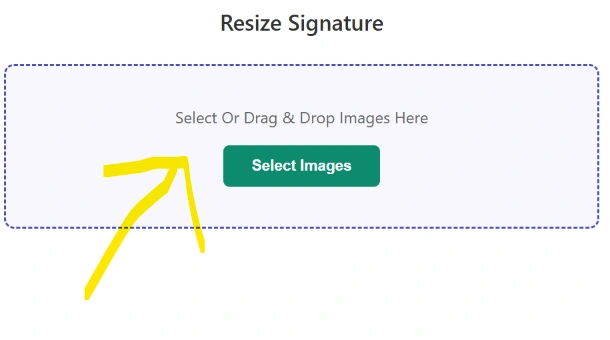
Start by selecting your signature image from your phone, tablet, or computer.
Commonly supported formats may include JPG, JPEG, and PNG.
Step 2: Enter the Required Size
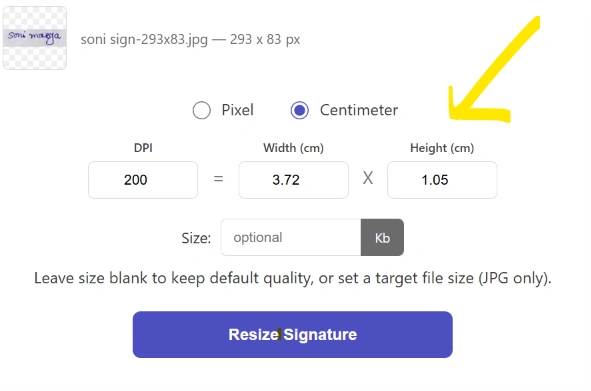
Enter the required width and height if the application specifies particular dimensions.
For example:
- Width: 300 pixels
- Height: 100 pixels
Always check the instructions provided by the website where you are submitting your signature because requirements can differ between applications.
Step 3: Preview Your Signature
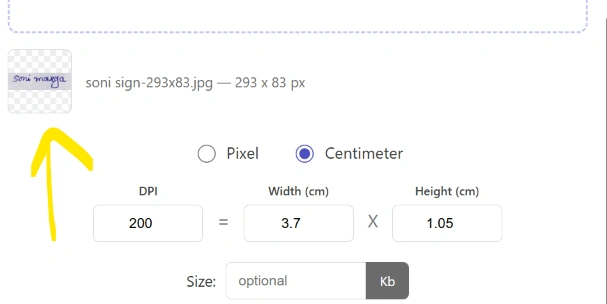
Preview the resized image before downloading it. This helps you check whether the signature remains clear and properly positioned.
Step 4: Download the Resized Signature
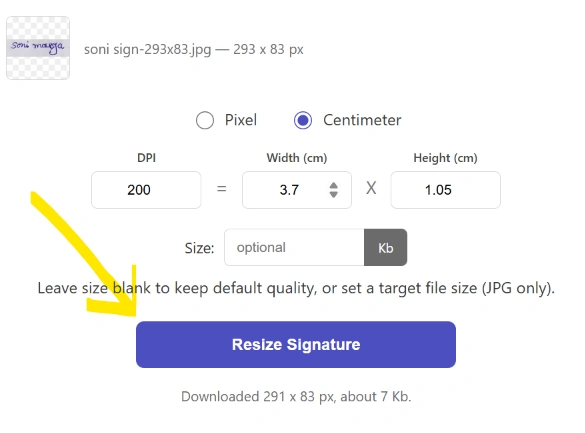
Once the image looks correct, download it and use it in your online application or document.
Why Do You Need to Resize a Signature?
Different websites and application forms have different image requirements. A signature scanned using a phone or scanner may be much larger than the permitted dimensions.
Resizing can help when:
An application requires specific dimensions:
Some forms provide exact width and height requirements.
Your signature image is too large:
A scanned image can contain unnecessary pixels and may not fit the upload requirements.
The signature appears too small:
Increasing the dimensions can make a small signature easier to use, although excessive enlargement can reduce image quality.
You need a consistent signature size:
If you regularly upload your signature to documents, maintaining a suitable standard size can save time.
Resize Signature for Online Forms
Online applications frequently ask applicants to upload a scanned signature. The instructions may specify requirements such as image dimensions, file format, or maximum file size.
Before resizing your signature, carefully read the application’s upload instructions.
For example, an application might specify:
- Specific image dimensions
- Maximum file size
- JPG or PNG format
- White background
- Clear handwritten signature
These requirements are different from one website to another, so there is no single signature size that works for every application.
Tip: Do not rely only on a general recommended size. Always follow the exact instructions given by the organization or application portal.
Resize Signature for Government Forms
Many government and public-service application portals require applicants to upload photographs and signatures in particular formats and sizes.
If your signature does not meet the portal’s requirements, you may receive an upload error.
A Resize Signature tool can help you prepare the image before uploading it. However, resizing only changes the image according to the settings you choose. It does not guarantee that an image will satisfy every portal’s requirements.
Always verify the final dimensions, file size, and format against the official application instructions.
Resize Signature for Exams and Job Applications
Students and job applicants often need to upload signatures while completing online applications.
The process can be inconvenient when a signature image does not meet the required specifications. Instead of repeatedly trying different files, you can prepare the image beforehand.
A simple workflow is:
- Sign on clean white paper.
- Scan or photograph the signature clearly.
- Crop unnecessary areas around the signature.
- Resize the image according to the application instructions.
- Check the final file size and format.
- Upload it to the application website.
This approach can help reduce common upload problems.
Can I Resize My Signature on a Mobile Phone?
Yes. An online Resize Signature tool can be useful when you are working from a smartphone.
You can generally:
- Open the tool in your mobile browser.
- Select the signature image from your gallery.
- Enter the required dimensions.
- Preview the result.
- Download the resized image.
There is usually no need to install a separate image-editing application for a simple resizing task.
Resize Signature Without Losing Quality
Simply increasing or decreasing an image’s dimensions does not always produce the same visual quality.
When making a signature smaller, the result will generally remain clear if the original image has sufficient resolution.
When enlarging a very small signature, however, the image may become blurry or pixelated. For this reason, it is better to start with a reasonably clear original image.
For the best result:
- Use a clear original signature.
- Avoid taking blurry photographs.
- Use good lighting.
- Keep the paper flat while scanning.
- Avoid excessive enlargement.
- Check the final image before uploading.
Resize Signature JPG or PNG
Signatures are commonly saved as JPG, JPEG, or PNG images.
JPG/JPEG is useful when a small file size is important.
PNG can be useful when you want to preserve sharper edges or transparency, depending on how the image is prepared.
The best format depends on the requirements of the website where you are uploading the signature.
If the application specifically asks for JPG, save the final signature as JPG rather than assuming PNG will be accepted.
Resize Signature to a Specific Pixel Size
Sometimes an application gives exact pixel dimensions.
For example:
Width: 300 pixels
Height: 100 pixels
In that situation, enter those values into the resizing tool and generate the image.
It is important to understand the difference between pixels and physical measurements such as centimeters or inches. If an application specifies pixels, use the pixel values directly.
What If My Signature File Is Too Large?
Resizing the dimensions can sometimes reduce the file size, but dimensions and file size are not the same thing.
For example, two images can have identical dimensions but different file sizes because they use different compression levels, formats, or image content.
If an application has a maximum file-size requirement, such as a limit in KB, you may need an image compressor in addition to resizing.
The safest approach is to check both:
- Image dimensions
- Final file size
before uploading.
What If My Signature Looks Stretched?
If you change the width and height independently, the signature may become distorted.
For example, making the width much wider without proportionally increasing the height can make the signature look stretched.
Whenever possible, maintain the original aspect ratio unless the application specifically requires exact dimensions.
If the application requires an exact width and height, you may need to crop the image first or use appropriate padding rather than simply stretching the signature.
Explore Our Tools
Tips for Creating a Good Signature Image
Before using a Resize Signature tool, start with a good-quality source image.
Use a clean background
Sign your name on plain white paper unless the application provides different instructions.
Use sufficient lighting
Good lighting makes the signature easier to scan or photograph.
Keep the camera steady
A blurry photograph can produce a poor-quality signature even after resizing.
Crop unnecessary space
Removing excessive blank space can make the signature easier to position in the required dimensions.
Follow the application’s instructions
The requirements provided by the application should always take priority over general advice.
Is It Safe to Resize a Signature Online?
Privacy is an important consideration when working with signatures because a signature can be sensitive information.
If your website’s tool processes images directly in the browser, clearly explain this to visitors and ensure that uploaded images are not unnecessarily sent to a server.
For a tool website, a transparent privacy policy should explain:
- Whether uploaded files are stored
- Whether files are sent to a server
- How long files are retained
- Whether files are automatically deleted
- Whether third parties can access uploaded files
Only make privacy claims that accurately describe how your tool actually works.
Resize Signature Online for Free
A simple signature resizing tool can save time when preparing images for online forms. Instead of opening advanced image-editing software, users can quickly adjust their signature to the dimensions required by an application.
The most important thing is to check the original instructions before resizing. Requirements can vary considerably between websites, organizations, examinations, and application portals.
Our Resize Signature tool is designed to make the image preparation process simple, accessible, and convenient.
Frequently Asked Questions
What does Resize Signature mean?
Resize Signature means changing the dimensions of a signature image, such as its width and height, so it can meet the requirements of an online form or document.
Can I resize a signature online for free?
Yes. An online signature resizing tool can allow you to adjust your signature image without installing desktop image-editing software.
What format should my signature be?
The required format depends on the website or application. JPG, JPEG, and PNG are commonly used, but always follow the specific instructions provided by the application.
Can I resize a signature on Android?
Yes. You can use a browser-based signature resizer on an Android phone or another mobile device, provided the tool supports mobile browsers.
Can I resize a signature on an iPhone?
Yes. A browser-based tool can be used from an iPhone or iPad to resize a signature image.
Does resizing reduce image quality?
Reducing an image’s dimensions usually has little impact when the original image is clear. Enlarging a very small image, however, can make it appear blurry or pixelated.
Can I resize a signature to a specific size?
Yes. If the tool supports custom dimensions, you can enter the required width and height. Make sure you use the units specified by the application, such as pixels.
Can resizing reduce the signature file size?
It can, but not always enough to meet a particular KB limit. If the file is still too large, an image compression tool may also be required.
Final Words
Preparing a signature for an online application should not have to be complicated. With a simple Resize Signature tool, you can adjust your signature image to the dimensions you need and prepare it for forms, examinations, job applications, and digital documents.
However, always check the official upload requirements before submitting your file. The correct dimensions, format, file size, and image quality depend on the specific website or organization.