Sometimes a PDF contains pages that you no longer need. You may have downloaded a document with extra pages, created a PDF with duplicate content, or simply want to share only specific pages with someone. In these situations, a remove page from PDF tool can make the process quick and simple.
Instead of installing complicated PDF software, you can use an online tool to select unwanted pages and remove them from your PDF. This guide explains how to remove pages from a PDF, why it can be useful, and what to consider when choosing an online PDF tool.
What Does “Remove Page from PDF” Mean?
Remove page from PDF means deleting one or more selected pages from an existing PDF document.
For example, imagine you have a 20-page PDF but only need pages 1–15. Rather than sharing the complete document, you can remove pages 16–20 and save a new PDF containing only the pages you need.
The original PDF remains unchanged, while the new file contains the selected pages you want to keep.
How to Remove Page from PDF Online
Removing unwanted pages from a PDF can be done in just a few steps with an easy-to-use online tool.
Step 1: Select Your PDF
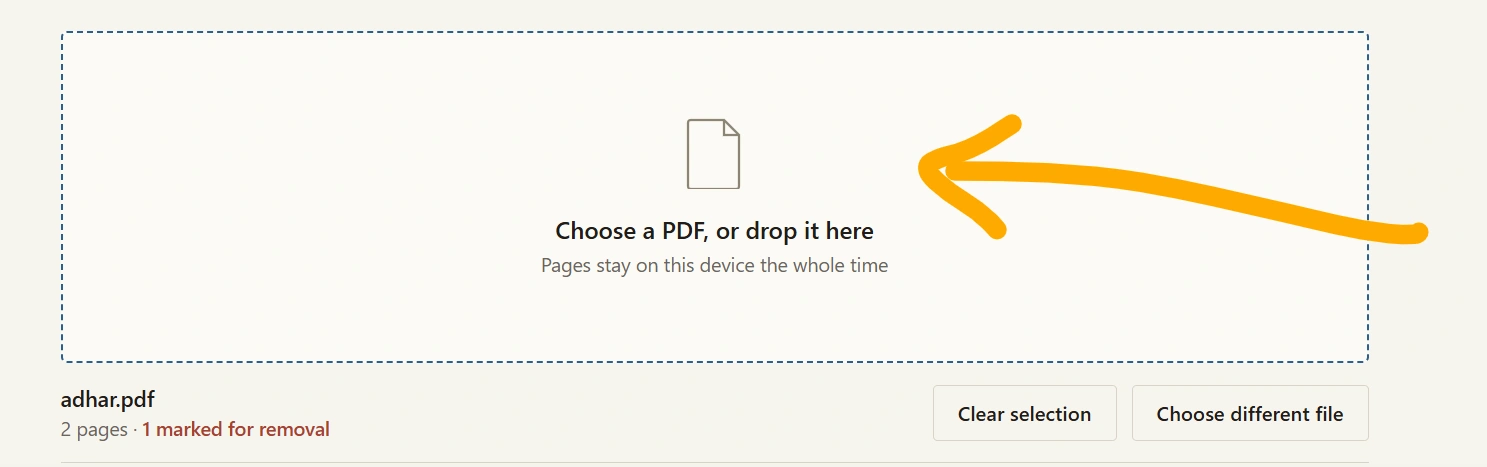
Open the PDF page removal tool and upload the PDF file from your computer, phone, or tablet.
Step 2: View the PDF Pages
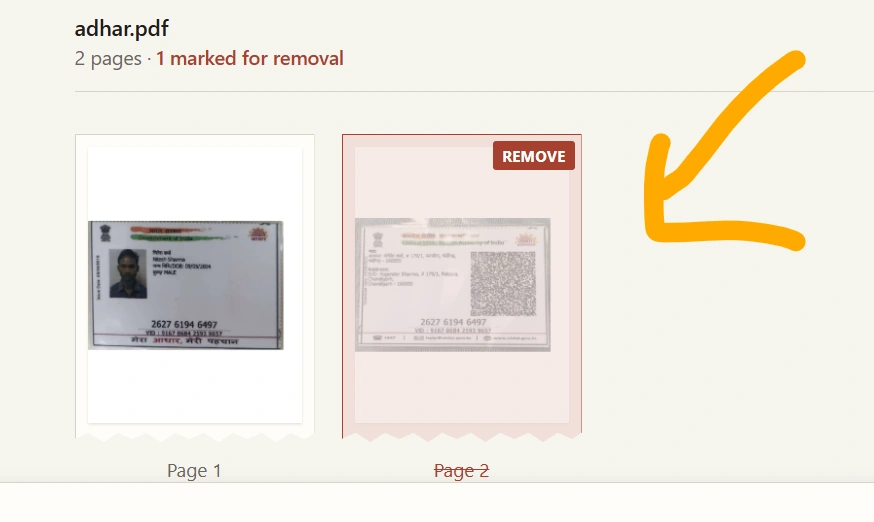
After uploading, the tool can display the pages or page numbers contained in the document. This makes it easier to identify which pages you want to remove.
Step 3: Select Unwanted Pages
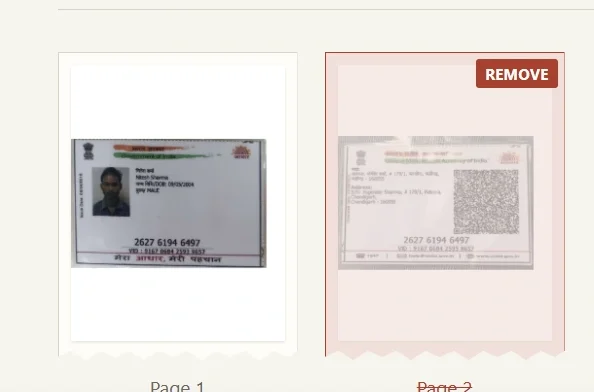
Choose the pages you don’t need. You can select individual pages, such as page 4 or page 8, or multiple pages depending on the tool’s features.
Step 4: Remove the Selected Pages
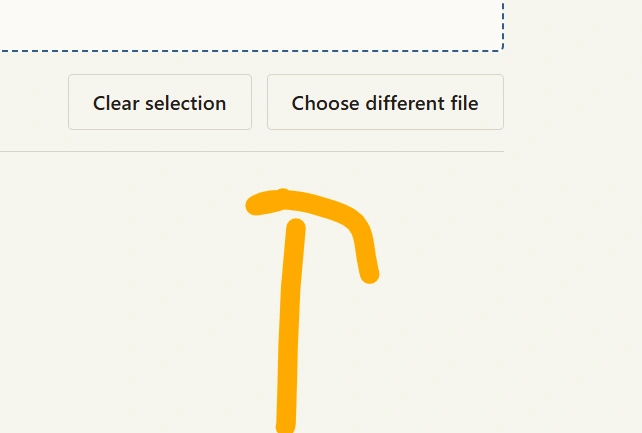
Click the Remove Pages or similar button. The tool processes the document and creates a new PDF without the selected pages.
Step 5: Download the New PDF
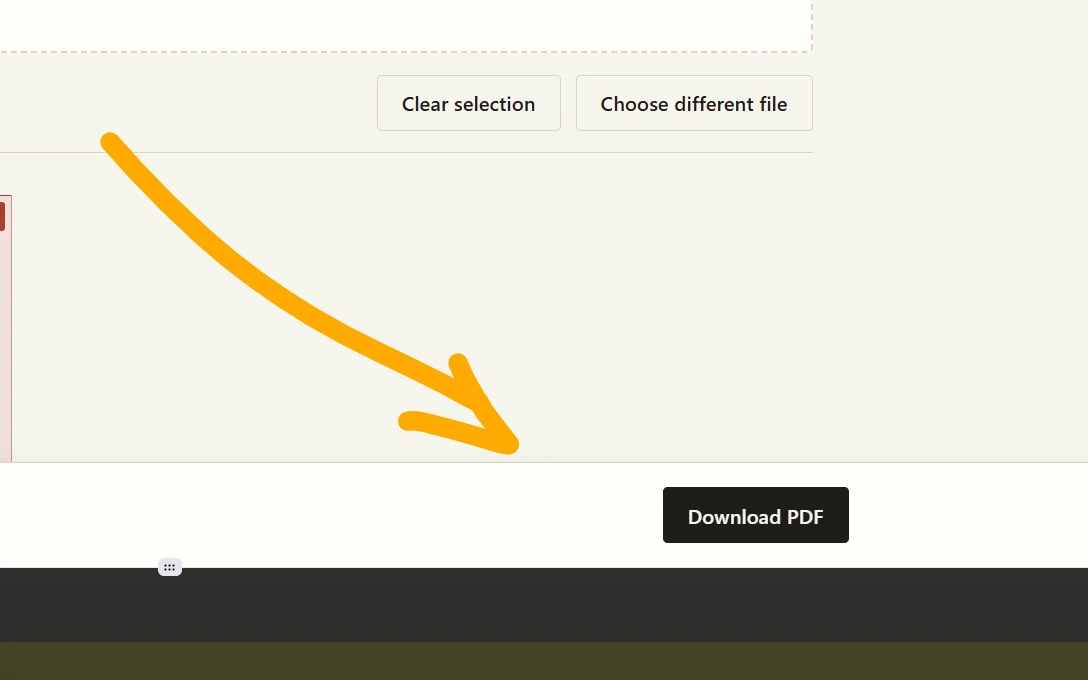
Once processing is complete, download the updated PDF and use it for sharing, printing, uploading, or storing.
Why Remove Pages from a PDF?
There are several reasons why someone may want to delete pages from a PDF.
1. Remove Blank Pages
PDFs sometimes contain blank pages because of scanning or document formatting. Removing them can make the document cleaner.
2. Delete Duplicate Pages
If the same page appears more than once, you can remove the unnecessary copy.
3. Share Only Relevant Information
A large PDF may contain information that isn’t relevant to the recipient. Removing unnecessary pages lets you create a more focused document.
4. Prepare Documents for Submission
Some online applications, educational institutions, and organizations have specific document requirements. Removing unnecessary pages can help you prepare a cleaner file before submitting it.
5. Organize Scanned Documents
Scanned documents can sometimes include unwanted covers, blank pages, or duplicate scans. Removing these pages can make the final PDF easier to read.
Benefits of Using an Online PDF Page Remover
An online remove page from PDF tool can be convenient for people who don’t want to install desktop software.
Easy to use: A simple interface can make removing pages possible without advanced PDF knowledge.
Works across devices: Browser-based PDF tools can be used on computers, tablets, and smartphones.
No complicated software: You don’t necessarily need a dedicated PDF editing application.
Saves time: Removing a few unwanted pages can take only a short time.
Useful for everyday documents: It can be helpful for reports, notes, assignments, scanned documents, forms, and other PDFs.
Can I Remove Multiple Pages from a PDF?
Yes, if the PDF tool supports multiple-page selection, you can select several unwanted pages at once.
For example, if pages 3, 7, 9, and 12 aren’t required, you can select those pages and remove them from the document. The remaining pages can then be saved as a new PDF.
The exact selection options depend on the tool you are using.
Does Removing a PDF Page Change the Original File?
Normally, an online PDF page removal tool creates a new version of the document rather than changing the original file stored on your device.
It is still a good practice to keep a copy of important documents before editing them. This gives you a backup if you later need the original version.
What Types of PDF Pages Can Be Removed?
Depending on the tool, you may be able to remove almost any normal page from a PDF, including pages containing:
- Text
- Images
- Tables
- Scanned documents
- Forms
- Charts
- Mixed content
Removing a page generally removes everything contained on that page from the resulting PDF.
Privacy and PDF Security
PDF files can contain sensitive information, including personal details, business information, academic records, or financial documents.
Before uploading a PDF to any online service, check its privacy and file-handling policies. If the document contains confidential information, consider using a tool that clearly explains how uploaded files are processed, stored, and deleted.
Avoid uploading sensitive documents to services you do not trust.
Frequently Asked Questions
Can I remove one page from a PDF?
Yes. If the tool supports individual page selection, you can select a single unwanted page and remove it from the PDF.
Can I remove several pages at once?
Yes, many PDF page removal tools allow users to select multiple pages and delete them together.
Is removing a PDF page the same as deleting the PDF?
No. Removing a page deletes a selected page from the document while keeping the remaining pages. Deleting a PDF means removing the entire PDF file.
Can I remove blank pages from a PDF?
Yes. You can select unwanted blank pages and remove them, provided the PDF tool supports page deletion.
Will the remaining pages stay in the PDF?
Normally, yes. When selected pages are removed, the other pages remain in the resulting PDF and are arranged in their existing order.
Can I use a PDF page remover on mobile?
If the tool is browser-based and mobile-friendly, you can use it from a smartphone or tablet.
Remove Page from PDF Easily
Whether you need to delete a blank page, remove duplicates, shorten a document, or prepare a PDF for sharing, an online remove page from PDF tool can make the process much easier.
Instead of editing a document manually or installing complex software, you can upload your PDF, select the pages you don’t need, remove them, and download the resulting document.
Explore Our Tools
- Resize Signature Online: Free Tool to Resize Your Signature Image
- Text Art: Create Amazing Text Art Online With Emojis
- Convert Text into PDF Online – Free, Fast & Easy Text to PDF Converter
- Text Files: Create, Edit, Open, and Download Text Files Online for Free
- Text Repeater 10000 Times – Repeat Text Online Free
- Online Clipboard – Copy, Store & Access Text Online for Free
- KB Increaser: Increase Image Size in KB Online for Free
- PDF to PNG High Quality: Convert PDF Pages into Clear PNG Images